
Henry Schein One partners with the Canadian Dental Association (CDA) to ensure your Dentrix system always reflects the latest national standards. CDA codes define every dental procedure and are essential for accurate charting, insurance claims, and communication with labs and referral sources. The CDA updates these codes annually to keep pace with evolving best practices.
Through our licensing agreement with the CDA, we deliver these updates seamlessly as part of your active Customer Service Plan—so your team can start the new year confident that your workflow remains uninterrupted and compliant.
Automatically Updating the CDA Codes
If you currently have an active Dentrix Customer Service Plan, and use Dentrix 24.x or newer, we’ve made the process to update CDA Codes as easy as possible. When the CDA update is available, Dentrix will automatically download and install the new codes. After this happens, you’ll see a message notifying you that Dentrix has installed the CDA update.
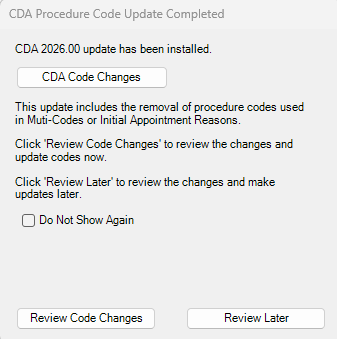
This window gives you three options:
- Click Review Code Changes to review or make changes to your procedure codes based on the new CDA updates.
- Click Review Later to close the message and continue working in Dentrix. If you choose to review the codes later, you will continue to the see the CDA message each time you open Dentrix.
- Select Do Not Show Again, then click Review Later and you won’t be bothered again by this message—at least not until next year!
If later you decide you want to review the code changes, you can access them in Procedure Code Setup in the Office Manager.
Viewing/Printing the 2026 CDA Codes
If you’re on Dentrix version 24.x or higher, the CDA code update installs automatically—no extra steps required.
You can review the new and changed codes for 2026:
- Open Office Manager
- Navigate to Maintenance > Practice Setup > Procedure Code Setup
- Click the What’s New button in the lower-right corner
This will display all the updated CDA codes so you can confirm changes or make adjustments as needed. To print the updated codes, run the Procedure Code List report in Office Manager.
Manually Updating the CDA Codes
If you do not have an active customer service plan, you can still add codes manually into Dentrix. Contact the CDA for the coding information, then reference the help articles listed below for the steps to add them.


